
[Xcode] 여러개 main.cpp을 한 프로젝트에서 실행하는 법 | [Xcode] How to Run Multiple main.cpp Files in a Single Project
백준알고리즘, 리트코드를 풀다보면 여러개의 solution.cpp 파일 혹은 main.cpp을 만들어서 실행해야하는 경우가 많습니다.
한개의 Xcode 프로젝트에 여러개의 main.cpp를 만드는 방법을 포스팅하려 합니다.
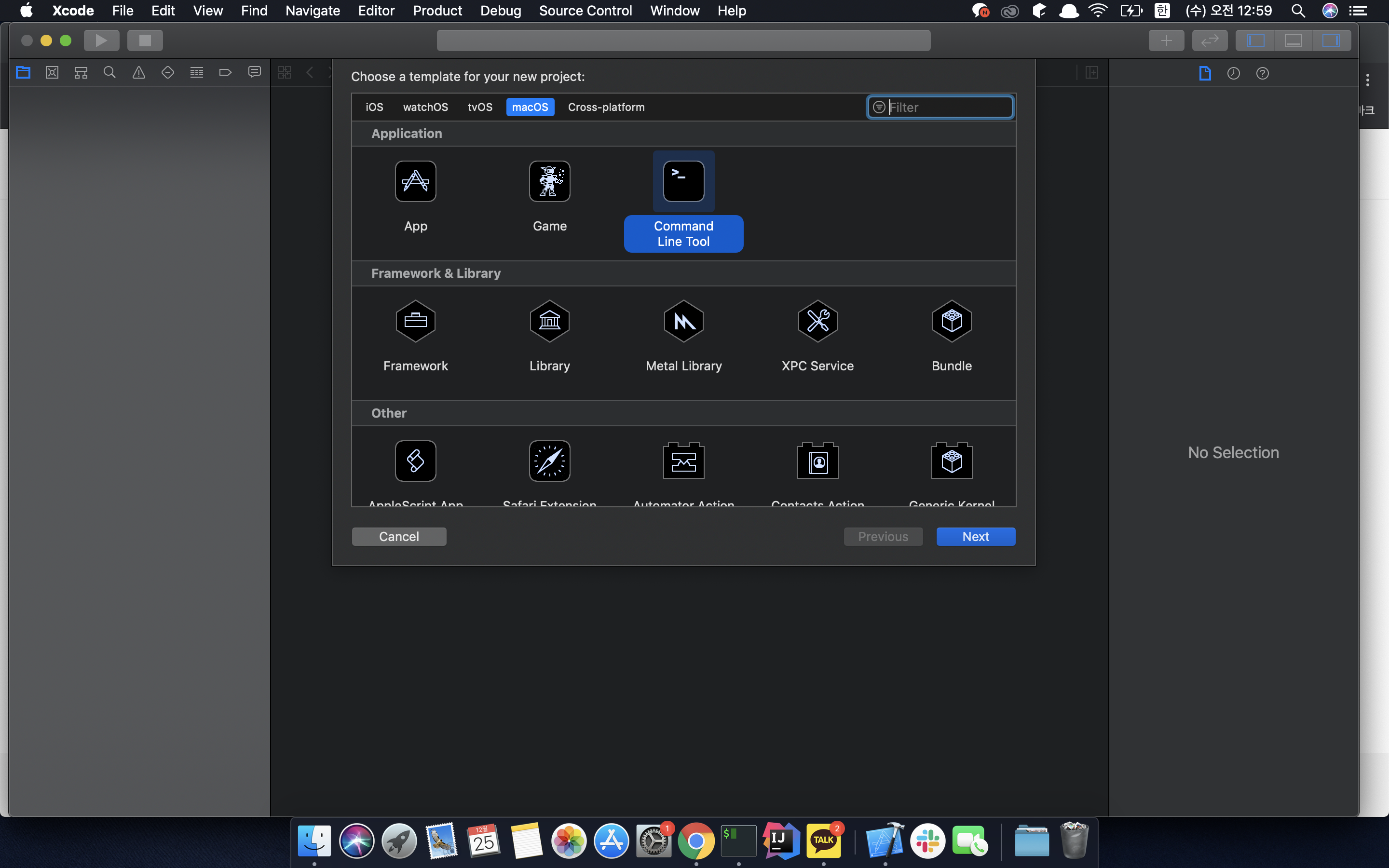
1. 새로운 Xcode 프로젝트를 생성합니다.
이때 프로젝트의 Command Line Tool 으로 만들어 줍니다.
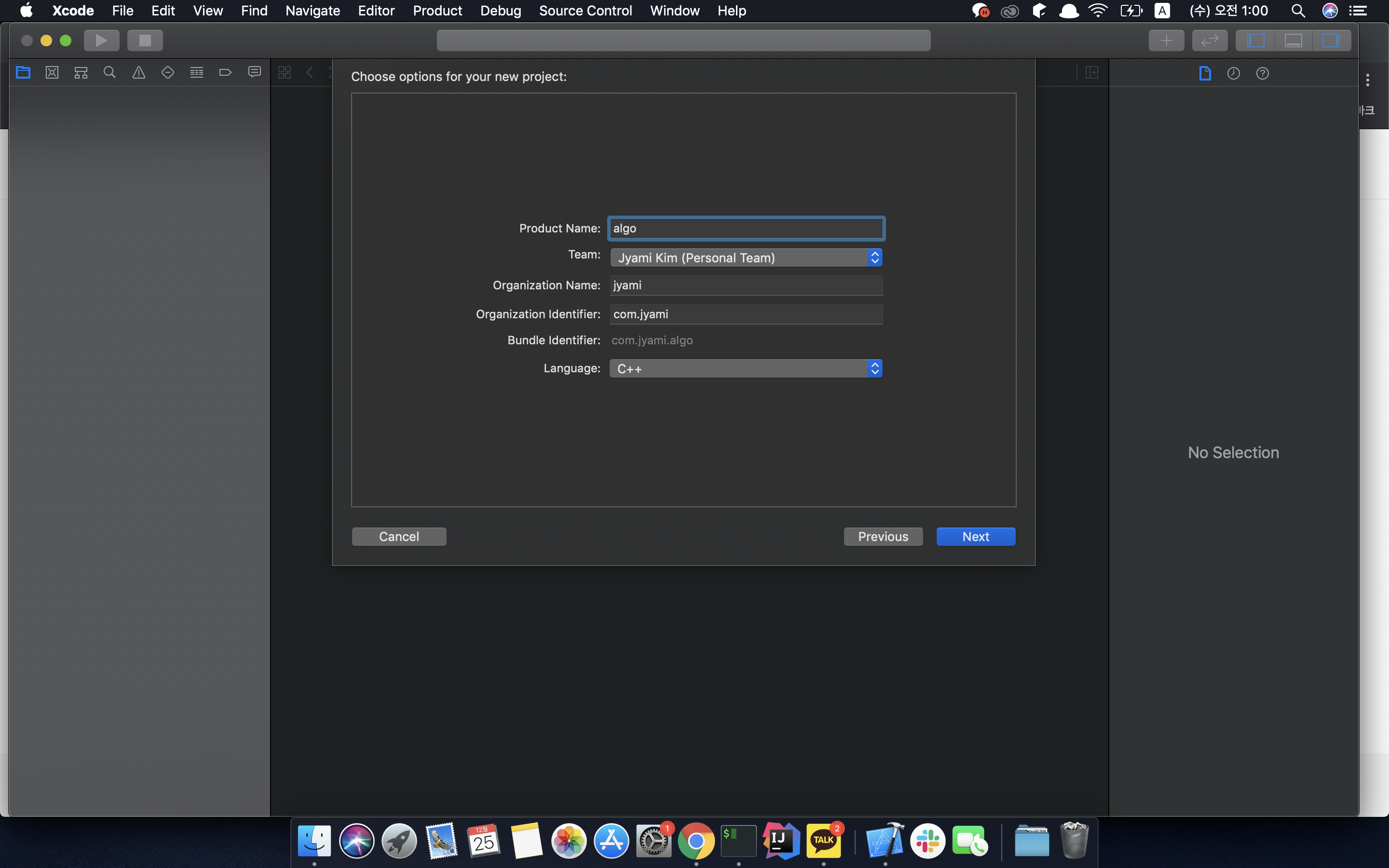
2. 새로운 프로젝트의 옵션을 적어줍니다.
3. Xcode project 프로젝트를 클릭합니다.

4. 프로젝트의 하단을 보면 프로젝트와 타겟에 대해 적혀있는 바의 하단을 보면 + - 가 있습니다. 이때 +를 눌러서
새로운 Target을 생성해줍니다.
Target 생성도 역시 1~2와 같이 Command Line Tool로 선택을 하고, Product Name을 지정해서 생성합니다.
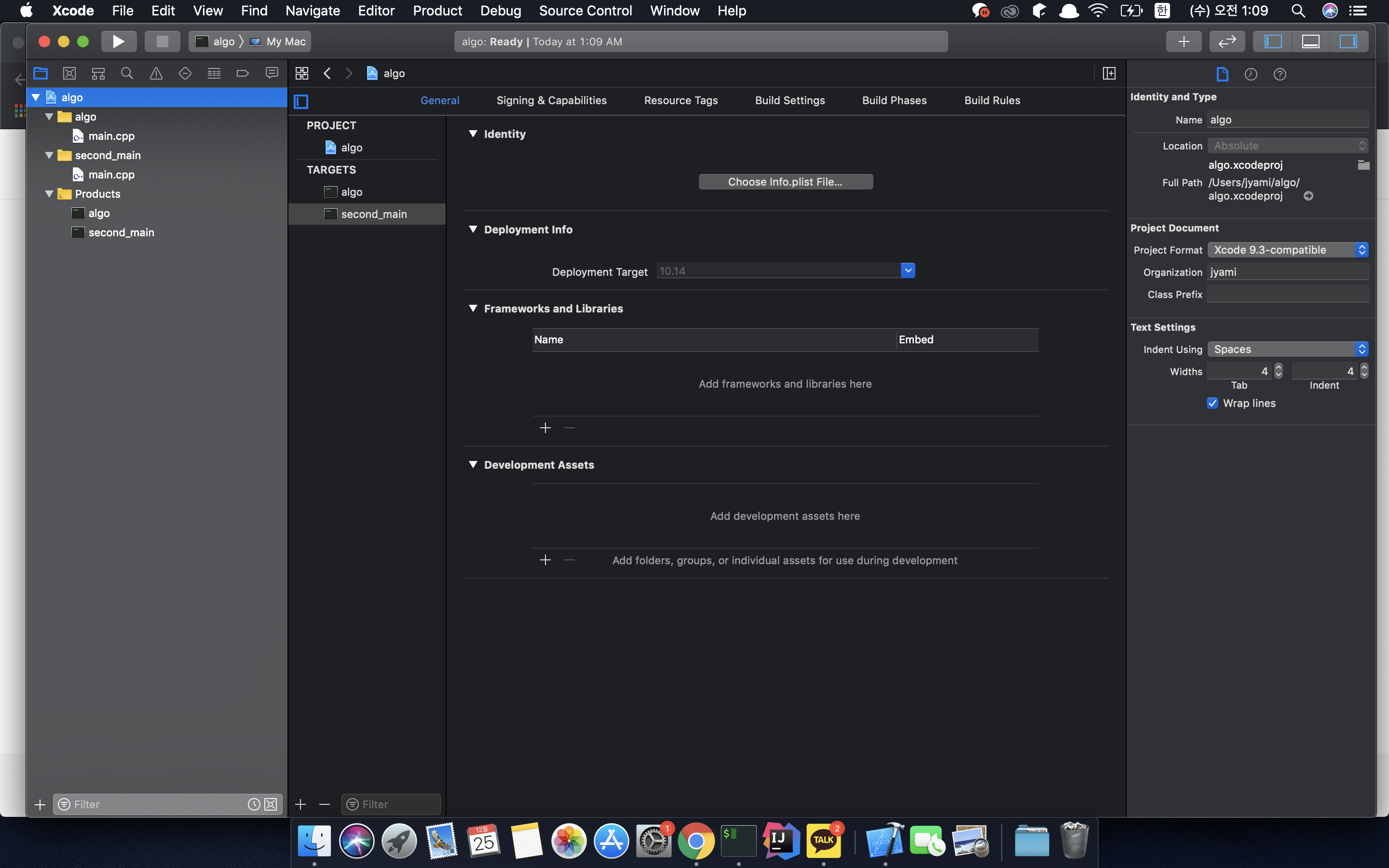
5. 다음과 같이 두개의 main이 생성되었습니다.
6. 편의를 위해 첫번째로 생성한 Target의 폴더 명 및 Products 이름을 first_main으로 바꿔주겠습니다.자세한 과정은 펼치기 클릭
6-1. Xcode 프로젝트의 Target에서 algo 타겟을 더블클릭하여 바꿉니다.
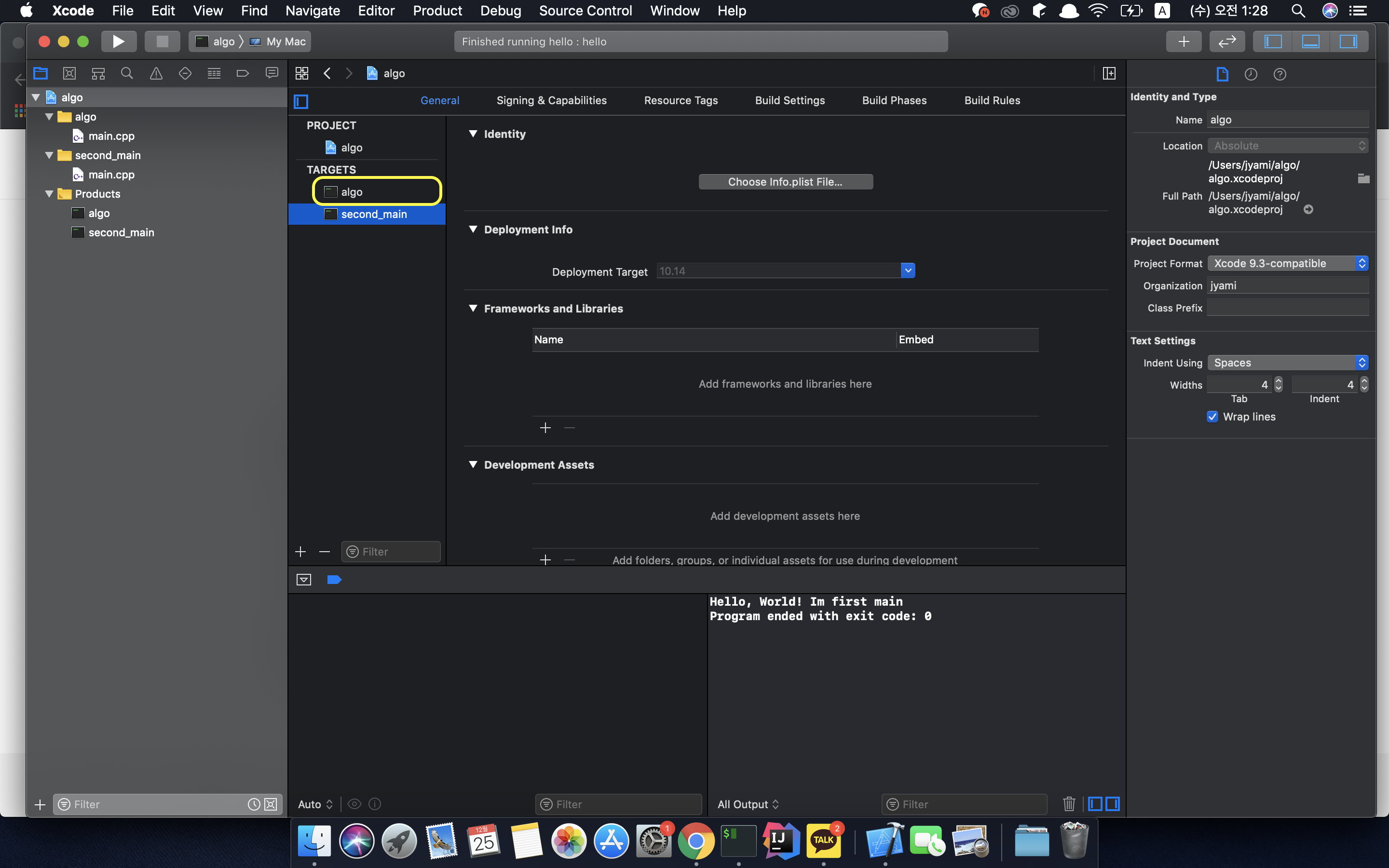
6-2. 폴더 명 역시 바꾸어주고, first_main 폴더(구 algo 폴더) 안의 main.cpp의 타겟이 first_main product로 잘 선택되어있는지 확인합니다.

6-3. 위에 있는 Run에는 여전히 algo로 떠있습니다. 이대로 실행을 할 경우에는 algo에서 first_main으로 target명만 바꾼 것이기 때문에 first_main > main.cpp를 새로 작성하고 재 컴파일을 해도 올바르게 컴파일이 됩니다. 하지만, 나중에 헷갈릴 가능성이 있기 때문에 run을 위해 사용하는 Target이름 명 역시 바꾸어 주기 위해 Run 옆에 있는 Target 선택에서 Manage Schemes를 클릭합니다.
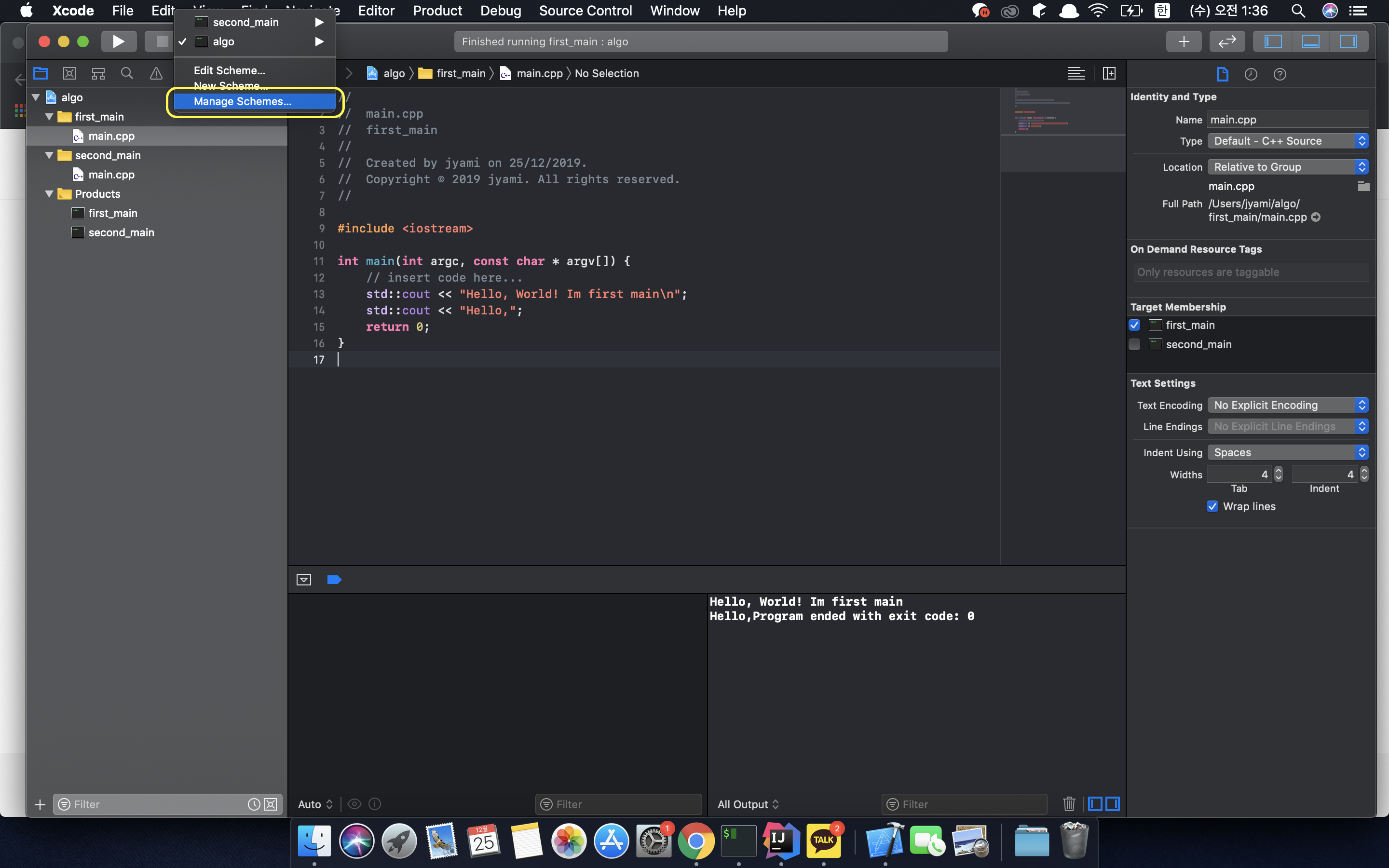
6-4. Manage Scheme에서 실행할 Target들을 관리할 수 있습니다. 여기에서 - 를 이용하여 기존의 algo라는 이름의 scheme를 지워주고 + 를 first_main이라는 이름으로 schemes에 target을 추가해 줍니다.

7. 실행을 합니다! 이때 왼쪽 상단에서 어떤 Target으로 실행을 할지를 선택해주면,
알고리즘용으로 여러개의 main을 한개의 프로젝트에서 작동시킬 수 있습니다.
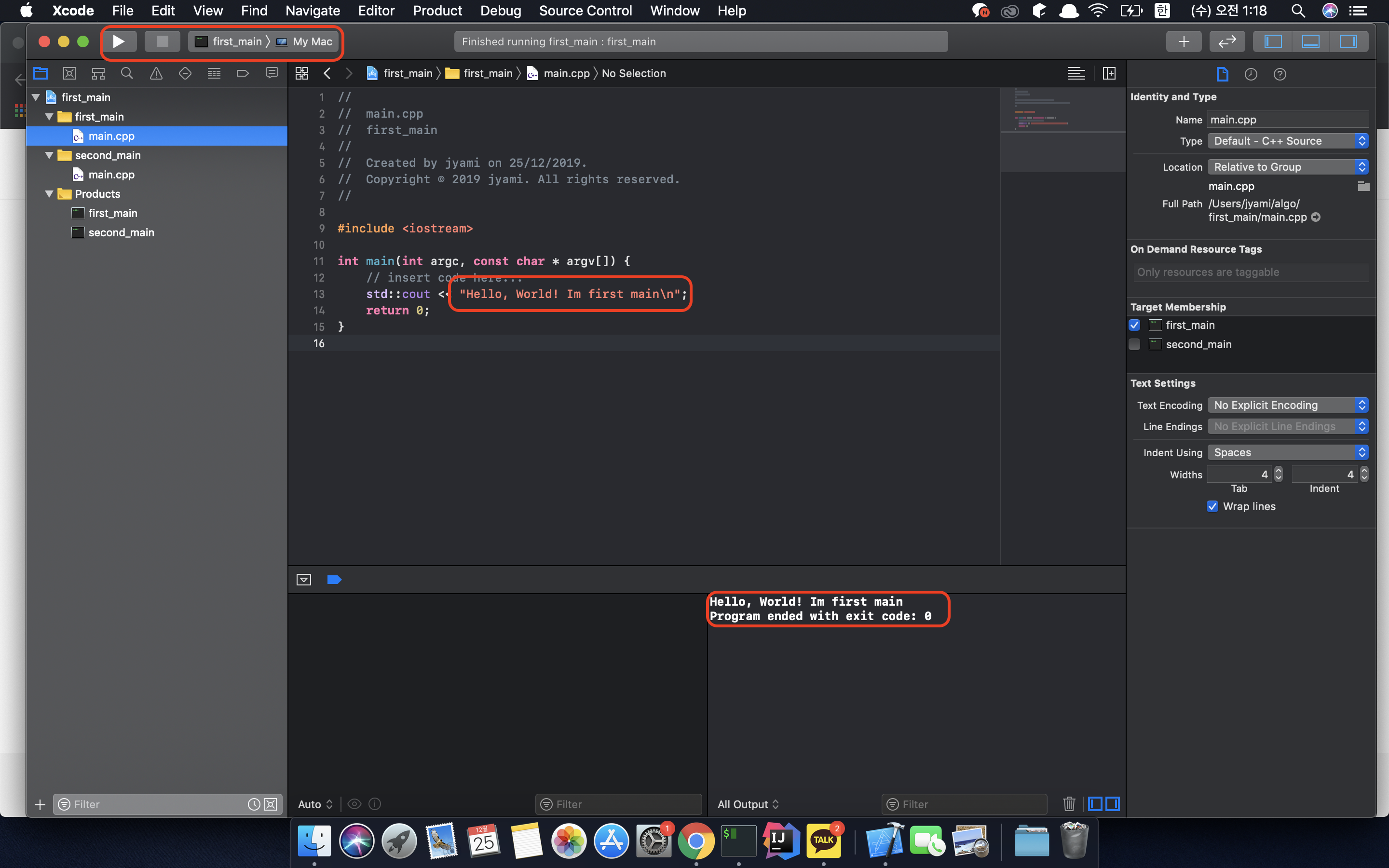
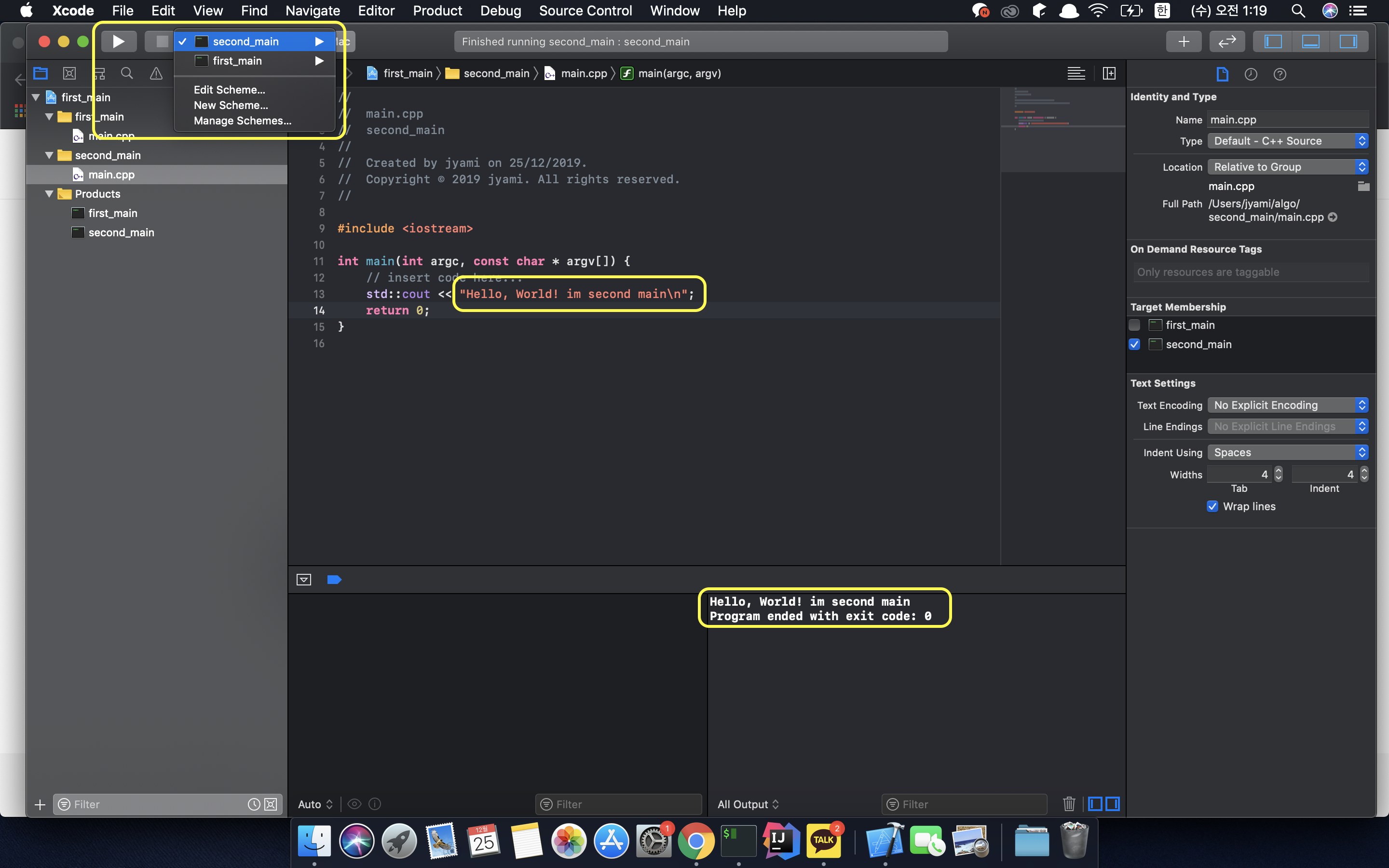
여기까지 Xcode로 여러개의 main.cpp 파일을 만들어야할 때 방법입니다.
알고리즘을 cpp로 풀고, git으로 한 폴더에 관리하려다 보니까 환경을 세팅하다보니까 이렇게 포스팅까지 하게되었습니다 :)
혹시 더 좋은 꿀팁이 있다면 댓글 달아주세요 감사합니다.
When solving problems on Baekjoon Online Judge or LeetCode, you often need to create and run multiple solution.cpp or main.cpp files.
I'm going to show you how to create multiple main.cpp files in a single Xcode project.
1. Create a new Xcode project.
Make sure to select Command Line Tool when creating the project.
2. Fill in the options for the new project.
3. Click on the Xcode project.
4. At the bottom of the project, you'll see a bar listing the project and targets. At the bottom of that bar, there are + and - buttons. Click the + button to
create a new Target.
Just like in steps 1–2, select Command Line Tool for the Target and specify a Product Name to create it.
5. Now you can see that two main files have been created.
6. For convenience, I'll rename the folder and Products name of the first Target to first_main.Click the expand toggle for the detailed steps
6-1. Double-click the algo target under Targets in the Xcode project to rename it.
6-2. Rename the folder as well, then check that the main.cpp inside the first_main folder (formerly the algo folder) has its target correctly set to the first_main product.
6-3. The Run button at the top still shows algo. If you run it as-is, it will still compile correctly since you only changed the target name from algo to first_main — even if you rewrite first_main > main.cpp and recompile. However, to avoid confusion later, let's also rename the Target used for running. Click on the Target selector next to Run and select Manage Schemes.
6-4. In Manage Schemes, you can manage the Targets available for running. Here, use the - button to remove the old scheme named algo, then use the + button to add a target to the schemes with the name first_main.
7. Run it! Just select which Target to run from the top-left corner,
and you can run multiple main files for algorithm problems within a single project.
And that's how you handle multiple main.cpp files in Xcode.
I ended up writing this post while setting up my environment to solve algorithm problems in C++ and manage them in a single folder with git :)
If you have any better tips, please leave a comment. Thanks!
'Algorithm' 카테고리의 다른 글
| 프로그래머스 - (Java) 정렬 | Programmers - (Java) Sorting (0) | 2020.01.10 |
|---|---|
| 프로그래머스 - (Java) 해시 | Programmers - (Java) Hash (4) | 2020.01.06 |
| 백준 알고리즘 9095 1, 2, 3 더하기 | Baekjoon Algorithm 9095: Adding 1, 2, 3 (3) | 2019.10.14 |
| 백준 알고리즘 1431 시리얼 번호 | Baekjoon Algorithm 1431 Serial Number (0) | 2019.09.28 |
| 백준 알고리즘 1026 보물 | Baekjoon Algorithm 1026 Treasure (0) | 2019.09.26 |


댓글
Comments