
[Intellij] GCP Plugin - Cloud Code 사용하기 in GCS | [Intellij] GCP Plugin - Using Cloud Code in GCS
GCP Storage를 연동하여 사용하는 글을 블로그에 포스팅하려고 Spring initializer을 이용해서 프로젝트를 생성하면서 좋은 플러그인을 발견하여 기록하려 한다.
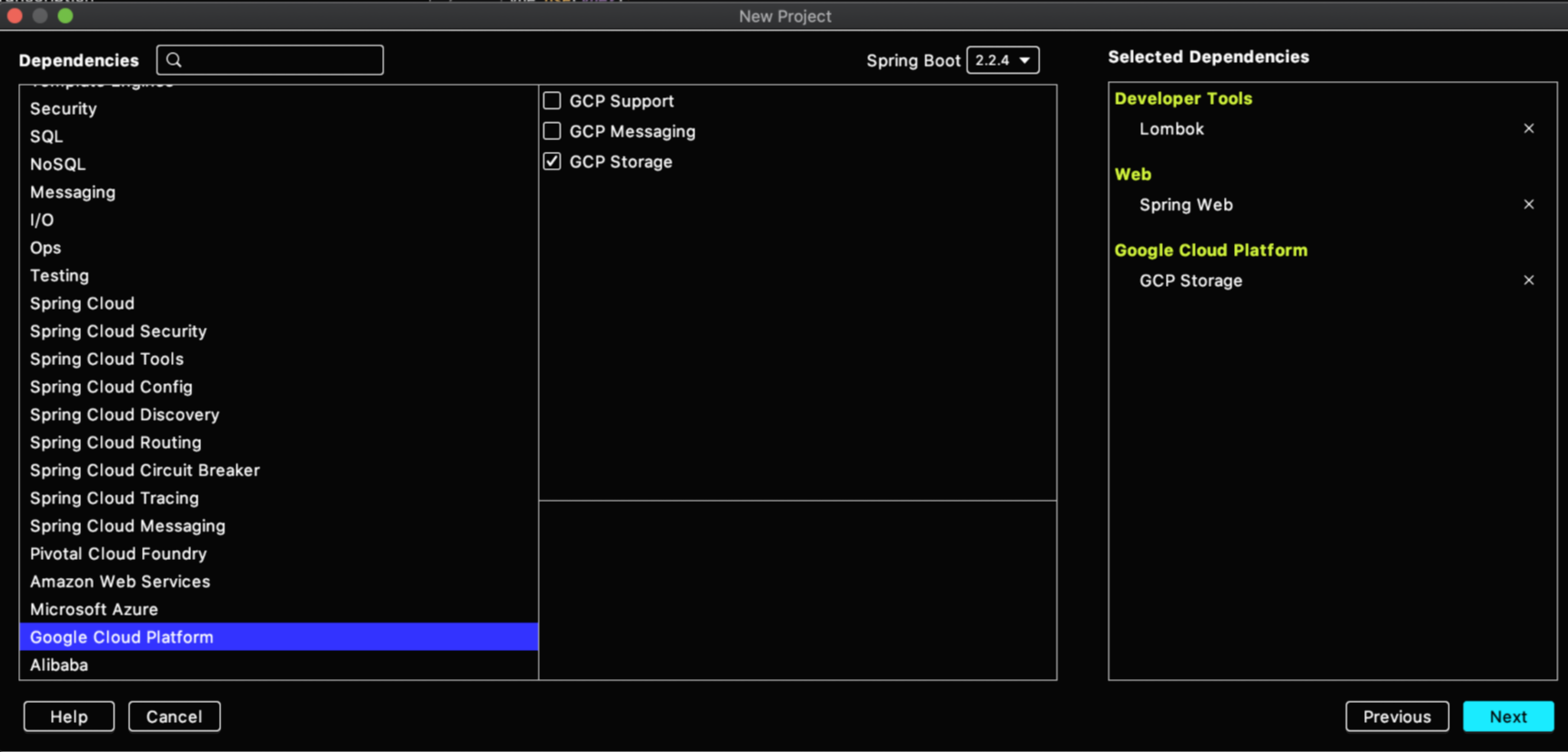
위와 같은 dependency로 새로운 프로젝트를 설정하니, Cloud Code라는plugin 추천이 떠서 받아보았다.
Google에서 개발한 플러그인으로, Stackdriver Debugger와 통합되서 GCP에서 실행되는 프로덕션 애플리케이션을 intellij에서 디버깅할 수 있다. 특히 Stackdriver Debugger를 사용하면 Stackdriver Debugger를 사용하면 Compute Engine과 App Engine 표준 환경 및 가변형 환경 모두에 배포된 자바 애플리케이션을 디버깅할 수 있다. 또한 App Engine 환경 배포를 직접 IDE에서 할 수 있는 장점도 있다.
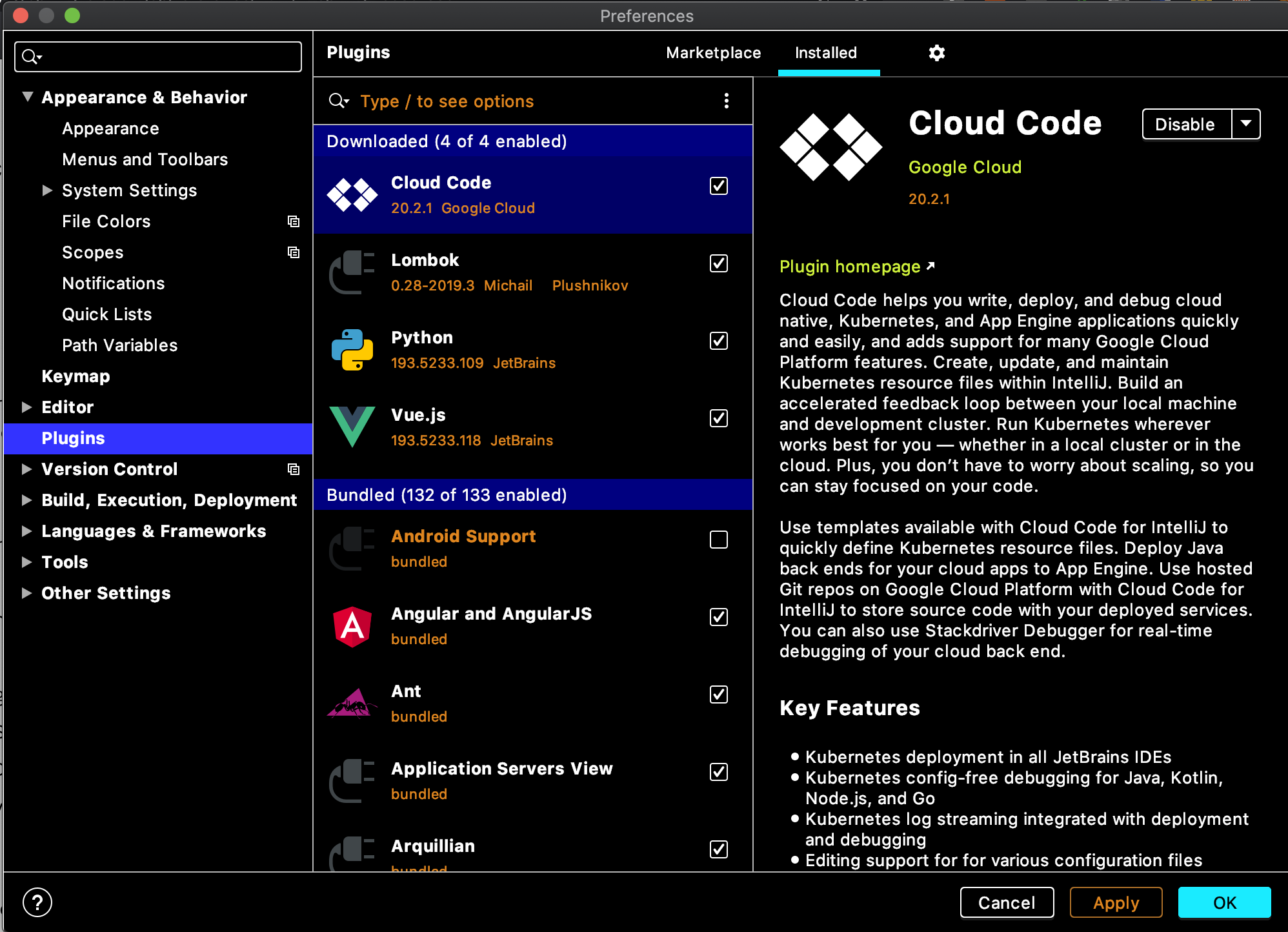
인텔리제이의 Preference [ ⌘ + , ] > Plugins > clod code 를 입력해서 설치할 수 있고, 설치가 완료될 경우 intellij를 restart 해야 플러그인을 적용할 수 있다.
https://cloud.google.com/code/docs/intellij/how-to
안내 가이드 | IntelliJ용 Cloud Code | Google Cloud
Except as otherwise noted, the content of this page is licensed under the Creative Commons Attribution 4.0 License, and code samples are licensed under the Apache 2.0 License. For details, see the Google Developers Site Policies. Java is a registered trade
cloud.google.com
설명서를 읽어보니 Intellij가 아니더라도 JetBrains 의 여러 IDE에서 가능했다. 다만 Intellij에 최적화된 플러그인이다.
PyCharm / WebStorm / PhpStorm / Rider / RubyMine / GoLand / AppCode / CLion
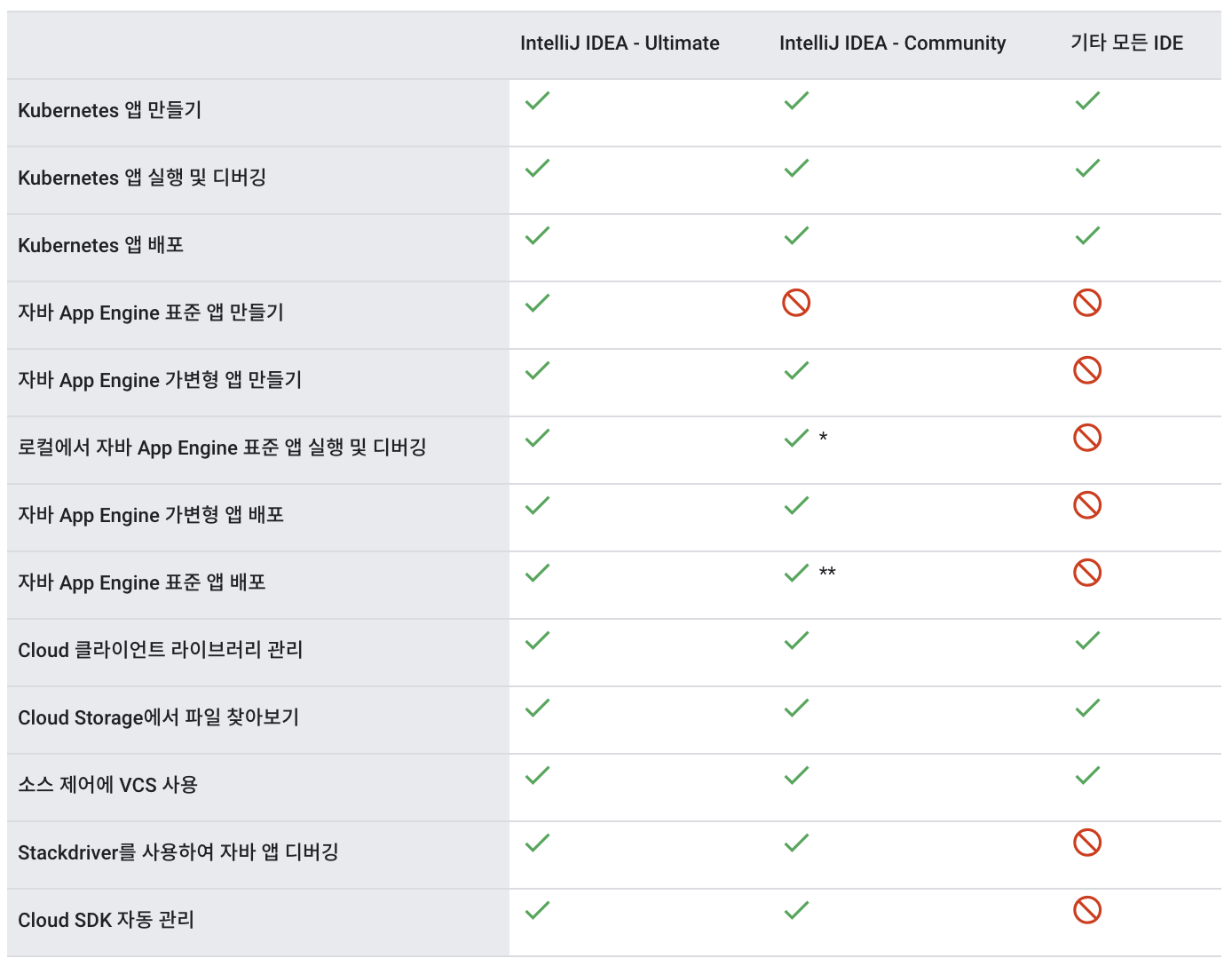
또한 Cloud code에서 제공하는 Google Cloud Platform에서 지원되는 프로덕트 리스트는 총 6개로 아래와 같으며 개요를 읽어보니 Kubernetes 개발, 배포에서의 편리성이 가장 큰 장점인 듯하다.근데 나는 Storage 작업을 할 건데,, 여튼 저튼 쨋든
1. Kubernetes : 애플리케이션 만들기, 애플리케이션 배포
2. App Engine : 애플리케이션 만들기 (가변, 표준)
3. Cloud API 및 GCP 라이브러리 관리
4. Cloud Storage : 버킷 안 콘텐츠 탐색
5. Cloud Source Repositories
6. Stackdriver Debugger : logging

플러그인 설치를 완료하면 인텔리제이 우측 바에 google cloud storage, kubernetes Explorer 탭이 생기게 되는데,
현재 내가 개발할 프로젝트는 cloud storage와 관련된 것이라, storage 탭에 대해 알아보려 한다.
storage에 대한 정보를 얻어오려면 GCP의 project를 가져와야 하기 때문에, 그 프로젝트의 권한을 가진 account로 로그인을 진행해준다.
로그인 버튼을 누르면 왼쪽 아래 그림과 같이 로그인 창이 뜨고 허용을 눌러주면 된다.

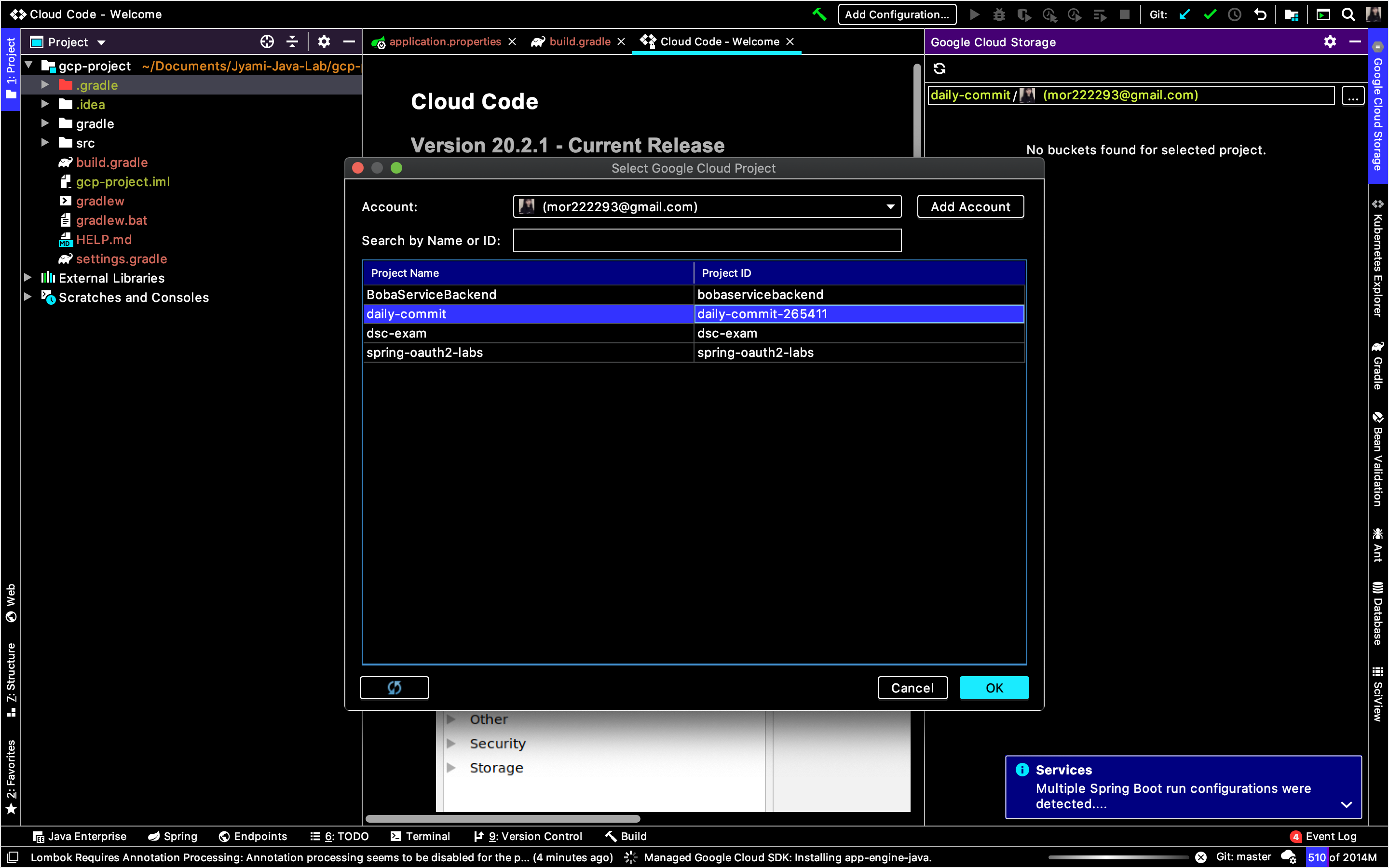
그리고 다시 Google Cloud Storage 탭으로 돌아와서 project를 선택해주면 되는데, 내가 현재 선택한 account가 권한을 가진 프로젝트 리스트들이 보이므로, storage를 사용할 project를 선택한다.
나는 daily-commit이라는 개인 프로젝트를 선택하였다. 이렇게 간단하게 연동이 마무리된다.
따로 console.cloud web을 통해 bucket안에 들어있는 파일, 폴더를 찾아보지 않아도, 개발하는 IDE 안에서 볼 수 있다는 장점이 있다.
나는 프로젝트에 두 개의 bucket을 만들었고, ewha-commiters-static-file이라는 버킷 안에 여러 폴더 + 파일들을 저장해둔 상태이다.
이런 내용을 기존에 GCP console Web을 이용해서 봤다면, 플러그인을 이용해서
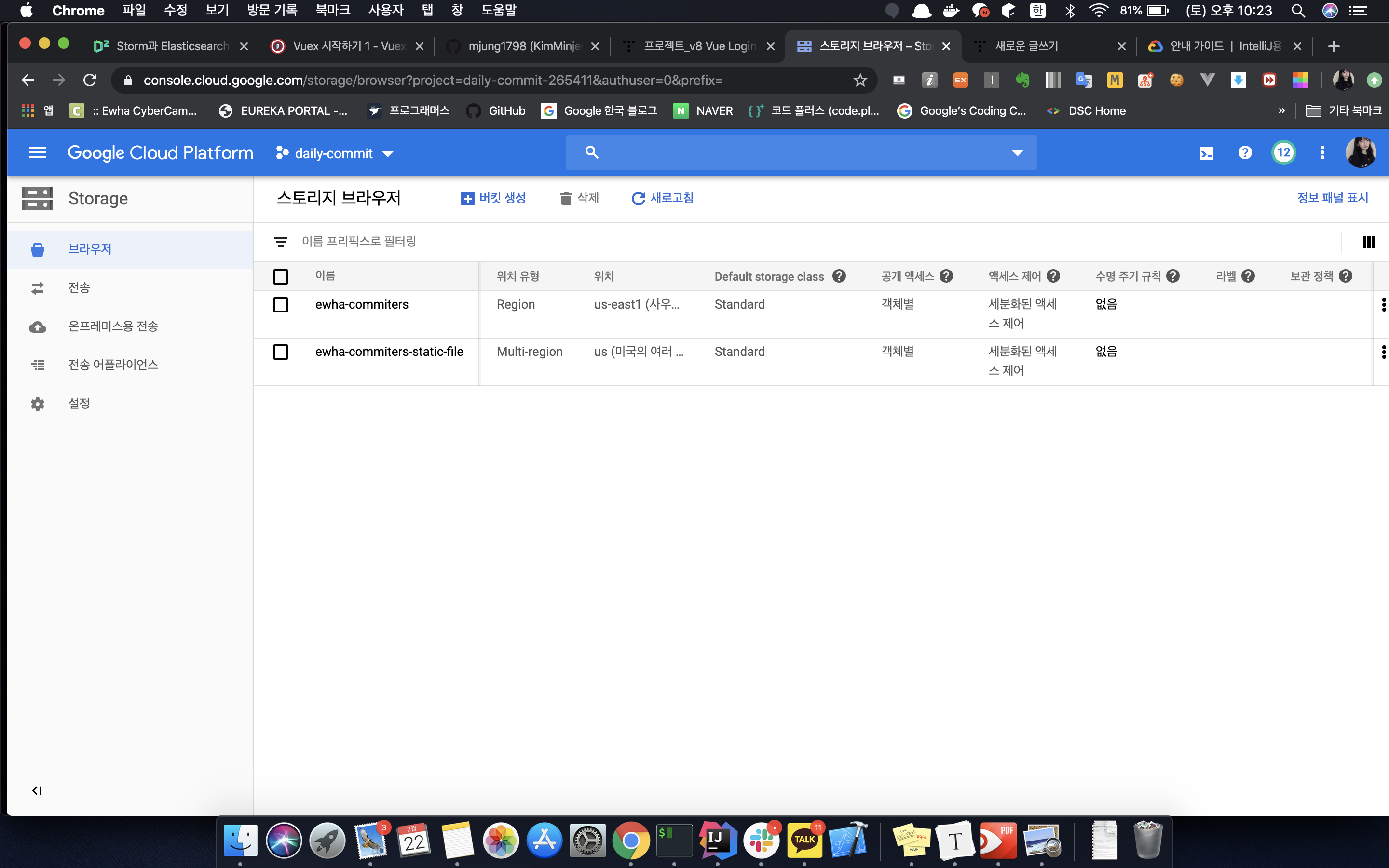

아래와 같이 Intellij IDE 안에서 bucket안에 있는 파일의 내용을 확인할 수 있다.
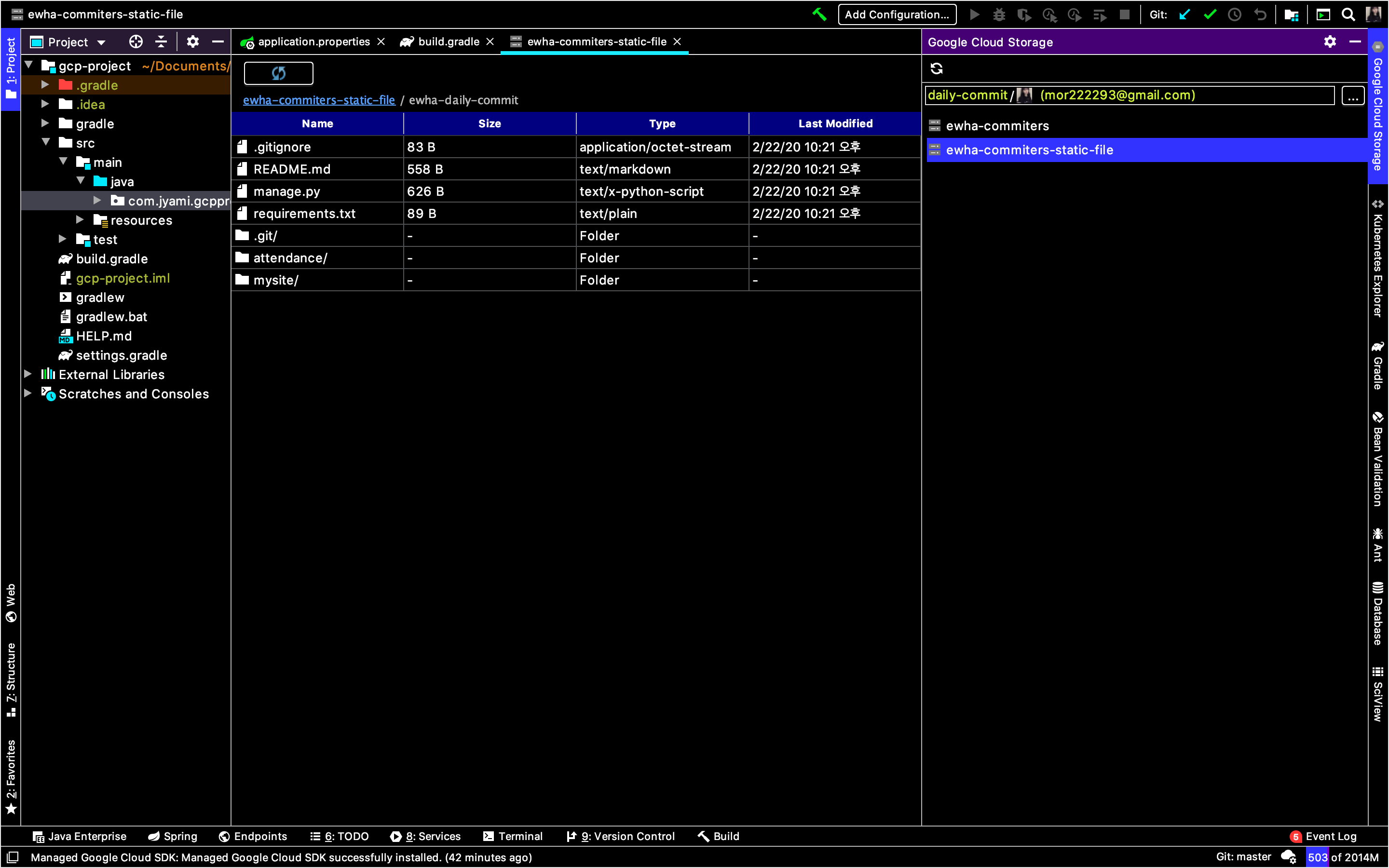
다만 아쉬운 게 있다면, Web GCP Console에서는 파일의 URL 및 다운로드 경로도 알 수 있었는데, plugin에서는 지원하지 않는다.
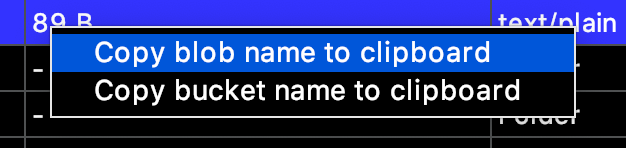
우클릭을 하면 아래와 같이 blob name과 bucket name을 복사할 수 있는데, 이를 이용해서 수제로 URL, 다운로드 경로를 만들어주자.
URL : gs://[bucket-name]/[blob-name]
링크 URL : https://storage.cloud.google.com/[bucket-name]/[blob-name]?authuser=0
storage 버켓 확인은 이 플러그인을 효과적으로 사용하는 것 같지 않아서, 다음번엔 Stackdriver의 log를 플러그인을 통해서 확인하는 방법을 찾아봐야겠다.
I was about to write a blog post about integrating GCP Storage, and while creating a project using Spring Initializer, I discovered a nice plugin that I wanted to document.
When I set up a new project with the dependencies shown above, a plugin recommendation for Cloud Code popped up, so I gave it a try.
It's a plugin developed by Google that integrates with Stackdriver Debugger, allowing you to debug production applications running on GCP directly from IntelliJ. In particular, with Stackdriver Debugger, you can debug Java applications deployed on both Compute Engine and App Engine standard and flexible environments. It also has the advantage of letting you deploy to App Engine environments directly from the IDE.
You can install it by going to IntelliJ's Preferences [ ⌘ + , ] > Plugins > and searching for "cloud code." Once the installation is complete, you need to restart IntelliJ to apply the plugin.
https://cloud.google.com/code/docs/intellij/how-to
How-to Guides | Cloud Code for IntelliJ | Google Cloud
Except as otherwise noted, the content of this page is licensed under the Creative Commons Attribution 4.0 License, and code samples are licensed under the Apache 2.0 License. For details, see the Google Developers Site Policies. Java is a registered trade
cloud.google.com
After reading the documentation, I found out it works not only with IntelliJ but also with several other JetBrains IDEs. However, it is optimized for IntelliJ.
PyCharm / WebStorm / PhpStorm / Rider / RubyMine / GoLand / AppCode / CLion
Also, Cloud Code supports a total of 6 Google Cloud Platform products as listed below. After reading the overview, it seems like the biggest advantage is the convenience in Kubernetes development and deployment.But I'm just going to work with Storage, so... anyway, moving on.
1. Kubernetes : Create applications, deploy applications
2. App Engine : Create applications (flexible, standard)
3. Cloud API and GCP library management
4. Cloud Storage : Browse contents within buckets
5. Cloud Source Repositories
6. Stackdriver Debugger : logging
Once the plugin installation is complete, you'll see Google Cloud Storage and Kubernetes Explorer tabs appear on the right sidebar of IntelliJ.
Since the project I'm currently working on is related to Cloud Storage, I'm going to look into the Storage tab.
To retrieve information about storage, you need to fetch the GCP project, so you'll need to log in with an account that has permissions for that project.
When you click the login button, a login window like the one on the left below will appear — just click "Allow."
Then go back to the Google Cloud Storage tab and select your project. You'll see a list of projects that your currently selected account has permissions for, so just pick the project you want to use with Storage.
I selected my personal project called "daily-commit." And just like that, the integration is done.
The nice thing is that you don't have to go through console.cloud web to look for files and folders inside your buckets — you can see them right inside the IDE where you're developing.
I created two buckets in my project and have stored several folders and files inside a bucket called "ewha-commiters-static-file."
If you used to check this kind of stuff through the GCP Console Web, now you can use the plugin instead.
As shown below, you can view the contents of files inside a bucket right within the IntelliJ IDE.
One downside though — in the Web GCP Console, you could see the file's URL and download path, but the plugin doesn't support that.
If you right-click, you can copy the blob name and bucket name as shown below. You can use these to manually construct the URL and download path.
URL : gs://[bucket-name]/[blob-name]
Link URL : https://storage.cloud.google.com/[bucket-name]/[blob-name]?authuser=0
Checking storage buckets doesn't seem like the most effective use of this plugin, so next time I should look into how to check Stackdriver logs through the plugin.




댓글
Comments